Deploy war on tomcat running on OpenShift

In this short blog, I will show you how you can deploy war file on Tomcat running on OpenShift. For Java, OpenShift supports three deployment options – JbossAS-7, JBossEAP-6, and JBossEWS-1.0 or Tomcat. In all of the three options it supports both binary deployment (war file) and source code deployment(maven project). I have talked about how you can do source code deployment on tomcat in my previous blog.

Step 1: Sign up for an OpenShift Account

If you don’t already have an OpenShift account, head on over to the website and signup with promo code ews. It is completely free and Red Hat gives every user three free Gears on which to run your applications. At the time of this writing, the combined resources allocated for each user is 1.5 GB of memory and 3 GB of disk space.

Step 2: Install the client tools on your machine

Note: If you would rather watch a screencast of this step, check out the following videos where I demo how to install the client tools.

Windows

Linux Ubuntu

Linux Fedora

OSX

The OpenShift client tools are written in a very popular programming language called Ruby. With OSX 10.6 or later and most Linux distributions, ruby is installed by default so installing the client tools is a snap. Simply issue the following command on your terminal application:

sudo gem install rhc

Step 3 : Setting up OpenShift

The rhc client tool makes it very easy to setup your openshift instance with ssh keys, git and your applications namespace. The namespace is a unique name per user which becomes part of your application url. For example, if your namespace is cix and application name is bookshop then url of the application will be https://bookshop-cix.rhcloud.com/. The command is shown below.

rhc setup -l openshift_login

Step 4 : Creating Tomcat Application

After installing the client tools and setting up OpenShift account, next step is to create the bookshop application. This is a very simple Spring JPA application which has only one entity called Book. So, a user can do CRUD operations on book entity. To create a book entity, execute the command shown below.

rhc app create -a bookshop -t jbossews-1.0

This will create an application container for us, called a gear, and setup all of the required SELinux policies and cgroup configuration. OpenShift will also setup a private git repository for you and propagate your DNS out world wide.

Step 5 : Download the WAR file

Because we are doing binary deployment in this blog, we have to remove the src folder and pom.xml file from git repository and add the war file.

git rm -rf src/ pom.xml
git commit -am "removing default files"

Next download the war file from http://bookshop-demo.googlecode.com/files/ROOT.war and copy the war file in webapps directory. The name ROOT for war makes sure that the application is accessible at the root context i.e. http://bookshop-cix.rhcloud.com/.

git add .
git commit -am "committing bookshop war file"

Step 6 : Pushing the code to OpenShift

Finally push the code to OpenShift using git.

git push

The git push command upload the binary to the application gear and runs the action hooks specified in .openshift/action_hooks folder.

Configuring JNDI DataSource with OpenShift Tomcat Cartridge

This short blog post will tell you how to configure JNDI datasource with OpenShift Tomcat cartridge. After configuring, we will also make it work with a sample Spring MVC application. Let’s get started.

Step 1 : Create Tomcat Application

After you have signed up for OpenShift and setup your account. Execute the rhc app create command as shown below to create tomcat application as shown below.

rhc app create -a tomcatjndidemo -t jbossews-1.0

Step 2 : Adding PostgreSQL Cartridge

Next we will add postgresql cartridge to our application by executing the command as shown below.

rhc cartridge add -a tomcatjndidemo -c postgresql-8.4

Step 3 : Defining Datasource in Tomcat Configuration Files

OpenShift gives you the flexibility to edit the tomcat configuration files. These files are location in .openshift/config folders inside tomcatjndidemo folder. If you look into this directory you will find that there are 5 files. For adding datasource we have to make changes in two files — context.xml and server.xml

In server.xml you have to define a resource under GlobalNamingResource as shown below.

<Resource name="jdbc/postgresqldb" auth="Container" type="javax.sql.DataSource"
	username="${env.OPENSHIFT_POSTGRESQL_DB_USERNAME}"        password="${env.OPENSHIFT_POSTGRESQL_DB_PASSWORD}"
	url="jdbc:postgresql://${env.OPENSHIFT_POSTGRESQL_DB_HOST}:${env.OPENSHIFT_POSTGRESQL_DB_PORT}/${env.OPENSHIFT_APP_NAME}"
	driverClassName="org.postgresql.Driver" initialSize="5" maxWait="5000"
	maxActive="120" maxIdle="5" validationQuery="select 1"
	poolPreparedStatements="true">
</Resource>

Next change that you have to make is in context.xml. You have to define resource link to the datasource as shown below.

 <ResourceLink name="jdbc/postgresqldb" global="jdbc/postgresqldb" type="javax.sql.DataSource"/>

Step 4 : Updating Tomcat Classpath with PostgreSQL JDBC Driver

Tomcat will require PostgreSQL JDBC driver jar to make connection with PostrgreSQL. You can’t copy the jars to tomcat lib directory as it is not writable. To do that, first ssh into the application instance and then download the jar in $OPENSHIFT_DATA_DIR as shown below.

cd $OPENSHIFT_DATA_DIR
wget http://repo1.maven.org/maven2/postgresql/postgresql/8.4-702.jdbc4/postgresql-8.4-702.jdbc4.jar

Next update the catalina.properties in your application .openshift/config folder to scan the OPENSHIFT_DATA_DIR as shown below. Please replace the openshift path with value of you OPENSHIFT_DATA_DIR environment variable.

common.loader=${catalina.base}/lib,${catalina.base}/lib/*.jar,${catalina.home}/lib,${catalina.home}/lib/*.jar,/var/lib/openshift/2e110c16da18478aa607f742d34b70fb/app-root/data/*.jar

Step 5 : Pushing Changes to OpenShift

Now you can push the changes to OpenShift as shown below.

git commit -am "made changes for tomcat jndi datasource"
git push

Step 6 : Testing the DataSource

The last step in this blog is to test the datasource configuration we added in step 3 and step 4. To do that pull the code from my github repository. The code is a simple Spring MVC application which do CRUD operations on Member entity. Please note that the code also contains the tomcat configuration changes. So, please update the catalina.properties with your $OPENSHIFT_DATA_DIR value.

git remote add jndi git://github.com/shekhargulati/tomcatjndidemo.git
git pull -s recursive -X theirs jndi master

Next do git push which will build the war file and deploy the application to tomcat. The application should be accessible at http://tomcatjndidemo-cix.rhcloud.com/

How to get Solr Up and Running On OpenShift

Full text search is a vital component in most enterprise or non-enterprise applications and Solr is one of the most popular choices. So, today I decided to spend sometime on getting Solr up and running on OpenShift. In this blog I am sharing all the steps required to get Solr running on OpenShift.

  1. Download the latest version of Solr. The current latest version is 3.5. You can get it from here http://www.apache.org/dyn/closer.cgi/lucene/solr/3.5.0
  2.  Install the OpenShift rhc ruby gem. You can follow steps https://www.redhat.com/openshift/community/kb/kb-e1000/installing-openshift-express-client-tools-on-non-rpm-based-systems
  3. Create a new jbossas-7 application using rhc gem. Type the command shown below.
    rhc-create-app -a solr -t jbossas-7 -d -l email
    
  4. Do a git remove the src and pom.xml files from the created solr maven project and commit the changes.
    git rm -rf src/ pom.xml
    git commit -a -m "removing default files"
    
  5. Copy the solr.war file which exists in apache-solr-3.5.0/example/webapps directory to deployment directory under solr maven project.
  6. Next solr needs a solr home directory. This directory contains a conf directory and lib directory. The default conf directory comes with solr installation and you can find at apache-solr-3.5.0/example/solr/conf. The lib directory should contains apache-solr-velocity-3.5.0.jar, commons-beanutils-1.7.0.jar,commons-collections-3.2.1.jar,velocity-1.6.4.jar,velocity-tools-2.0.jar. The solr home directory will also have index.
  7. On oepenshift you can put data in $OPENSHIFT_DATA_DIR. So create a folder solr.home under $OPENSHIFT_DATA_DIR directory.
  8. Push the conf and lib directory to $OPENSHIFT_DATA_DIR/solr.home directory using rsync.I zipped both conf and lib directory in one solr.zip file and extracted on remote machine.
    rsync -avz -e ssh solr.zip xxx@solr-india.rhcloud.com:$OPENSHIFT_DATA_DIR/solr.home
    
  9. Now you need to add solr.war, commit it and push it to openshift.
    git add .
    git commit -a -m "committing solr war"
    git push
    
  10. The above line will stop the jboss and deploy the war. But you will get exception because you didn’t specified solr home. To do that ssh into the openshift application instance and execute the command shown below.
    ctl_all stop
    export JAVA_OPTS="$JAVA_OPTS -Dsolr.solr.home=$OPENSHIFT_DATA_DIR/solr.home"
    ctl_all start
    

    Finally you will see up and running solr http://solr-india.rhcloud.com/solr/admin/

Writing to OpenShift Express File System

One of the features that you will not find in most Platform as a Service solutions is writing to file system. Writing to file system is very important as you need it in case you want to write user uploaded content to file system, or write lucene index or read some configuration file from a directory. OpenShift Express from the start support writing to file system.

In this blog I will create a simple Spring MVC MongoDB application which store movie documents. I will be using Spring Roo to quickly scaffold the application. Spring Roo does not provide file upload functionality so I will modify the default application to add that support. Then I will deploy the application to OpenShift Express.

Creating a OpenShift Express JBoss AS7 application

The first step is to create the JBoss AS7 applictaion in OpenShift Express. To do that type the command as shown below. I am assuming you have OpenShift Express Ruby gem installed on your machine.

rhc-create-app -l <rhlogin email> -a movieshop -t jbossas-7.0 -d

This will create a sample Java web application which you can view at http://movieshop-<namespace&gt;.rhcloud.com.

Adding support for MongoDB Cartridge

As we are creating Spring MongoDB application we should add support for MongoDB by executing the command as shown below.

rhc-ctl-app -l <rhlogin email> -a movieshop -e add-mongodb-2.0 -d

Removing default generated file from git

We don’t need the default generated files so remove them by executing following commands.

git rm -rf src pom.xml
git commit -a -m "removed default generated files"

Creating Spring MVC MongoDB MovieShop Application

Fire the Roo shell and execute the following commands to create the application.

project --topLevelPackage com.xebia.movieshop --projectName movieshop --java 6
mongo setup
entity mongo --class ~.domain.Movie
repository mongo --interface ~.repository.MovieRepository
service --interface ~.service.MovieService
field string --fieldName title --notNull
field string --fieldName description --notNull --sizeMax 4000
field string --fieldName stars --notNull
field string --fieldName director --notNull
web mvc setup
web mvc all --package ~.web

Adding file upload support

Add two fields to Movie entity as shown below.

@Transient
private CommonsMultipartFile file;
private String fileName;

public CommonsMultipartFile getFile() {
    return this.file;
}
public void setFile(CommonsMultipartFile file) {
    this.file = file;
}
public String getFileName() {
   return fileName;
}
public void setFileName(String fileName) {
   this.fileName = fileName;
}

Edit the create.jspx file as shown below to add file upload as shown below.

<?xml version="1.0" encoding="UTF-8" standalone="no"?>
<div xmlns:c="http://java.sun.com/jsp/jstl/core" xmlns:field="urn:jsptagdir:/WEB-INF/tags/form/fields" xmlns:form="urn:jsptagdir:/WEB-INF/tags/form" xmlns:jsp="http://java.sun.com/JSP/Page" xmlns:spring="http://www.springframework.org/tags" version="2.0">
    <jsp:directive.page contentType="text/html;charset=UTF-8"/>
    <jsp:output omit-xml-declaration="yes"/>
    <form:create id="fc_com_xebia_movieshop_domain_Movie" modelAttribute="movie" path="/movies" render="${empty dependencies}" z="wysyQcUIaJOAUzNYNVt5nMEdvHk=" multipart="true">
        <field:input field="title" id="c_com_xebia_movieshop_domain_Movie_title" required="true" z="SpYrTojoyx2F7X5CjEfFQ6CBdA4="/>
        <field:textarea field="description" id="c_com_xebia_movieshop_domain_Movie_description" required="true" z="vxiB62k7E7FzhnVz1kU7CCIYEkw="/>
        <field:input field="stars" id="c_com_xebia_movieshop_domain_Movie_stars" required="true" z="XdvY0mpBitMGzrARD3TmTxxXZHg="/>
        <field:input field="director" id="c_com_xebia_movieshop_domain_Movie_director" required="true" z="6L8yvzx1cZgTq0QKP1dHbGHbQxI="/>
        <field:input field="file" id="c_com_shekhar_movieshop_domain_Movie_file" label="Upload image" type="file" z="user-managed"/>
        <field:input field="fileName" id="c_com_xebia_movieshop_domain_Movie_fileName" z="user-managed" render="false"/>
    </form:create>
    <form:dependency dependencies="${dependencies}" id="d_com_xebia_movieshop_domain_Movie" render="${not empty dependencies}" z="nyAj+bBGTpzOr2SwafD6lx7vi30="/>
</div>

Also change the input.tagx file to add support for input type file. Add the following line as shown below

<c:when test="${type eq 'file'}">
      <form:input id="_${sec_field}_id" path="${sec_field}" disabled="${disabled}"  type="file"/>
</c:when>

Modify the MovieController to write file either to the OpenShift_DATA_DIR or my local machine in case System.getEnv(“OPENSHIFT_DATA_DIR”) is null. The code is shown below.

import java.io.File;
import java.io.FileInputStream;
import java.io.UnsupportedEncodingException;
import java.math.BigInteger;

import javax.servlet.ServletOutputStream;
import javax.servlet.http.HttpServletRequest;
import javax.servlet.http.HttpServletResponse;
import javax.validation.Valid;

import org.apache.commons.io.IOUtils;
import org.springframework.beans.factory.annotation.Autowired;
import org.springframework.roo.addon.web.mvc.controller.scaffold.RooWebScaffold;
import org.springframework.stereotype.Controller;
import org.springframework.ui.Model;
import org.springframework.validation.BindingResult;
import org.springframework.web.bind.annotation.PathVariable;
import org.springframework.web.bind.annotation.RequestMapping;
import org.springframework.web.bind.annotation.RequestMethod;
import org.springframework.web.bind.annotation.RequestParam;
import org.springframework.web.multipart.commons.CommonsMultipartFile;
import org.springframework.web.util.UriUtils;
import org.springframework.web.util.WebUtils;

import com.xebia.movieshop.domain.Movie;
import com.xebia.movieshop.service.MovieService;

@RequestMapping("/movies")
@Controller
@RooWebScaffold(path = "movies", formBackingObject = Movie.class)
public class MovieController {

	private static final String STORAGE_PATH = System.getEnv("OPENSHIFT_DATA_DIR") == null ? "/home/shekhar/tmp/" : System.getEnv("OPENSHIFT_DATA_DIR");

	@Autowired
    MovieService movieService;

	@RequestMapping(method = RequestMethod.POST, produces = "text/html")
	public String create(@Valid Movie movie, BindingResult bindingResult,
			Model uiModel, HttpServletRequest httpServletRequest) {
		if (bindingResult.hasErrors()) {
			populateEditForm(uiModel, movie);
			return "movies/create";
		}
		CommonsMultipartFile multipartFile = movie.getFile();
		String orgName = multipartFile.getOriginalFilename();
		uiModel.asMap().clear();
		System.out.println(orgName);
		String[] split = orgName.split("\\.");
		movie.setFileName(split[0]);
		movie.setFile(null);
		movieService.saveMovie(movie);
		String filePath = STORAGE_PATH + orgName;
		File dest = new File(filePath);

		try {
			multipartFile.transferTo(dest);
		} catch (Exception e) {
			throw new RuntimeException(e);
		}
		return "redirect:/movies/"
				+ encodeUrlPathSegment(movie.getId().toString(),
						httpServletRequest);
	}

	@RequestMapping(value = "/image/{fileName}", method = RequestMethod.GET)
	public void getImage(@PathVariable String fileName, HttpServletRequest req, HttpServletResponse res) throws Exception{
		File file = new File(STORAGE_PATH+fileName+".jpg");
		res.setHeader("Cache-Control", "no-store");
		res.setHeader("Pragma", "no-cache");
		res.setDateHeader("Expires", 0);
		res.setContentType("image/jpg");
		ServletOutputStream ostream = res.getOutputStream();
		IOUtils.copy(new FileInputStream(file), ostream);
		ostream.flush();
		ostream.close();
	}

Also change the show.jspx file to display the image.

<?xml version="1.0" encoding="UTF-8" standalone="no"?>
<div xmlns:field="urn:jsptagdir:/WEB-INF/tags/form/fields" xmlns:jsp="http://java.sun.com/JSP/Page" xmlns:page="urn:jsptagdir:/WEB-INF/tags/form" version="2.0">
    <jsp:directive.page contentType="text/html;charset=UTF-8"/>
    <jsp:output omit-xml-declaration="yes"/>
    <page:show id="ps_com_xebia_movieshop_domain_Movie" object="${movie}" path="/movies" z="2GhOPmD72lRGGsTvy9DYx8/b/b4=">
        <field:display field="title" id="s_com_xebia_movieshop_domain_Movie_title" object="${movie}" z="L3rzNq9mt4vOBL/2S9L5XTn4pGA="/>
        <field:display field="description" id="s_com_xebia_movieshop_domain_Movie_description" object="${movie}" z="rctpFQukL584DSNTEhcZ/zqm19U="/>
        <field:display field="stars" id="s_com_xebia_movieshop_domain_Movie_stars" object="${movie}" z="Mi3QNsQkI5hqOVW44XwXAGF2zKE="/>
        <field:display field="director" id="s_com_xebia_movieshop_domain_Movie_director" object="${movie}" z="rhXx3l+3zMxx0O0ht2Td3Icx1ZE="/>
        <field:display field="fileName" id="s_com_xebia_movieshop_domain_Movie_fileName" object="${movie}" z="7XTMedYLsWVvZkq2fKT0EZpZaPE="/>
        <IMG alt="${movie.fileName}" src="/movieshop/movies/image/${movie.fileName}" />
    </page:show>
</div>

Finally change the webmvc-config.xml to have CommonsMultipartResolver bean as shown below.

<bean
		class="org.springframework.web.multipart.commons.CommonsMultipartResolver"
		id="multipartResolver" >
		<property name="maxUploadSize" value="100000"></property>
	</bean>

Pointing to OpenShift MongoDB datastore

Change the applicationContext-mongo.xml to point to OpenShift MongoDB instance as shown below.

<mongo:db-factory dbname="${mongo.name}" host="${OPENSHIFT_NOSQL_DB_HOST}"
			port="${OPENSHIFT_NOSQL_DB_PORT}" username="${OPENSHIFT_NOSQL_DB_USERNAME}"
			password="${OPENSHIFT_NOSQL_DB_PASSWORD}" />

Add OpenShift Maven Profile

OpenShift applications require maven profile called openshift which is executed when git push is done.

<profiles>
		<profile>
			<!-- When built in OpenShift the 'openshift' profile will be used when
				invoking mvn. -->
			<!-- Use this profile for any OpenShift specific customization your app
				will need. -->
			<!-- By default that is to put the resulting archive into the 'deployments'
				folder. -->
			<!-- http://maven.apache.org/guides/mini/guide-building-for-different-environments.html -->
			<id>openshift</id>
			<build>
				<finalName>movieshop</finalName>
				<plugins>
					<plugin>
						<artifactId>maven-war-plugin</artifactId>
						<version>2.1.1</version>
						<configuration>
							<outputDirectory>deployments</outputDirectory>
							<warName>ROOT</warName>
						</configuration>
					</plugin>
				</plugins>
			</build>
		</profile>
	</profiles>

Deploying Application to OpenShift

finally do git push to deploy the application to OpenShift and you can view the application running at http://movieshop-random.rhcloud.com/
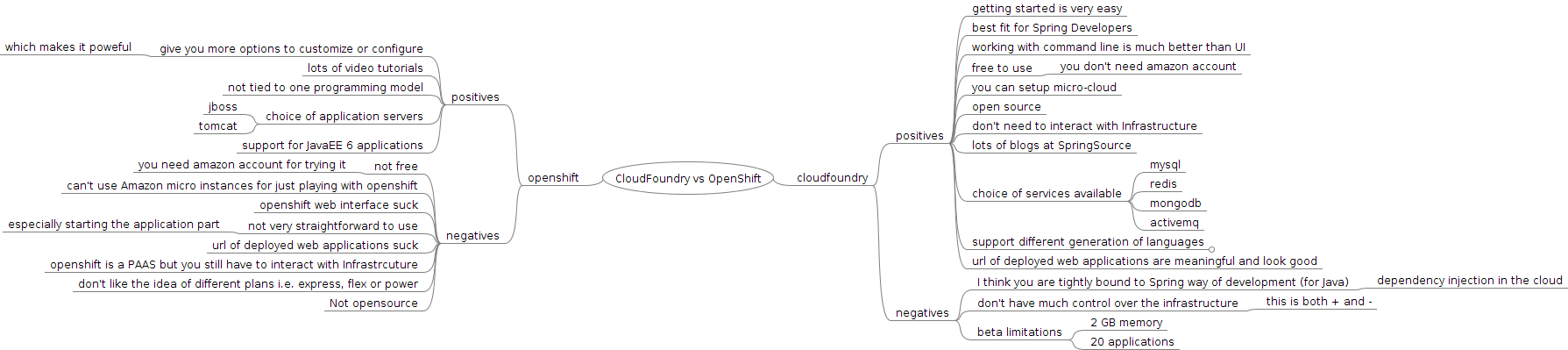
Spring Roo + OpenShift Express == Extreme Productivity In Cloud Part 1

Today, I released the second version of OpenShift Express Spring Roo Add-on. With this release add-on also support creation of domain namespace and changing the domain namespace. Now the only important thing left in the add-on is support for session management so that users does not  have to enter email and password with every command. From today, I am starting a series of short blog posts which will cover the features of this add-on. In this post I will be  talking about creating and changing domain namespace. Before I get into details lets me first tell you what is Spring Roo and OpenShift Express in case you don’t know about them.

Note :You can also refer to my Spring Roo series on IBM DeveloperWorks for more details.

What is Spring Roo?

Spring Roo is a lightweight productivity tool for Java™ technology that makes it fast and easy to develop Spring-based applications. Applications created using Spring Roo follow Spring best practices and are based on standards such as JPA, Bean Validation (JSR-303), and Dependency Injection (JSR-330). Roo offers a usable, context-aware, tab-completing shell for building applications. Spring Roo is extensible and allows add-ons, enhancing its capability.

What is OpenShift Express?

OpenShift Express is a Platform as a Service offering from RedHat. OpenShift Express allows you to create and deploy applications to the cloud. The OpenShift Express client is a command line tool that allows you to manage your applications in the cloud. It is currently free and runs on Amazon EC2. Currently it supports Java, Ruby, PHP, Python run times. You can refer to OpenShift Express documentation for more details.

OpenShift Express Client Tools

OpenShift Express has three client tools for creating and deploying applications to cloud. These are RHC Ruby Gem., OpenShift Express Eclipse Plugin, and SeamForge RHC Plugin. I have mainly used RHC Ruby Gem and it is very easy to use and work. There were two problems why I decided to write Roo add-on. One is that you need Ruby Runtime and second is I use Spring Roo a lot so it allows me to perform full lifecycle of the application from within Roo shell. Because I am writing add-on I can also do lot of interesting stuff like session management, making some changes to the code to avoid repetitive work. One such thing that I have already added is adding OpenShift profile in the pom.xml. This will help me automate repetitive work.

Lets Get Started

Getting started with the add-on is very easy. First you need to download Spring Roo and fire the Roo shell. Once inside the Roo shell we have to install the add-on. To do this execute the following command as shown below.

osgi start --url http://spring-roo-openshift-express-addon.googlecode.com/files/org.xebia.roo.addon.openshift-0.2.RELEASE.jar

It will take couple of seconds to install the add-on. You can view that a new OSGI process has started using osgi ps command.

Creating Domain

Before you can create domain please signup at https://openshift.redhat.com/app/express.  The email and password with which you signup will be the credentials for accessing the cloud. After you have signed up the next step is to create a domain. You can’t create the applications before creating a domain. The domain is a logical name within which all your applications will reside. It forms the part of your application url. For example if you created a domain with name “paas” and application with name “openshift” your application url will be http://openshift-paas.rhcloud.com . We can create the domain using rhc-create-domain command but in this blog I will show you how to create using Spring Roo add-on. To create domain using Spring Roo execute the command shown below.

rhc create domain --namespace openpaas --rhLogin <rhlogin> --password <password> --passPhrase <passphrase>

This command does the following things :

  1. It will create the ssh keys under user.home/.ssh folder if they does not exist. The passphrase is required for creating the sshkeys.
  2. If ssh keys already exists it loads the ssh keys from user.home/.ssh location and reuse them.
  3. finally it creates the domain with namespace openpaas.
  4. In case your credentials are wrong it will show a log line saying that credentials are wrong.

Changing Domain Namespace

Although you can’t delete a domain after you have created but you can change the domain name. To do that you can use the command shown below.

rhc change domain --namespace xyz --rhLogin <rhlogin> --password <password>

This will change the domain name to xyz.

Thats it for this blog. In the next blog we will look at how to create Spring JPA application using Spring Roo and deploy it to OpenShift Express.

Recover Lost Cartridge Password in OpenShift Express

I have been working with OpenShift express for quite some time and I create lot of applications and add different cartridge to the application. To access the cartridges using clients you need to  remember the credentials. I developed a small application which was using MongoDB cartridge and I wanted to access the database using mongo shell client on the express instance but I forgot the password. To retrieve the lost password a simple recipe is to log into the express instance using ssh. Get the user information from rhc-user-info command. Once you log into instance just type env command. It will list down all the environment variable and from the list you can recover password. A sample output is shown below.

[example-example.rhcloud.com ~]\> env
OPENSHIFT_NOSQL_DB_USERNAME=admin
SELINUX_ROLE_REQUESTED=
OPENSHIFT_NOSQL_DB_TYPE=mongodb
TERM=xterm
SHELL=/usr/bin/trap-user
OPENSHIFT_LOG_DIR=/var/lib/libra/2b80xxxxxxxxxxxxxxxx4547a74fb42b9/example/logs/
SSH_CLIENT=122.161.141.170 13010 22
OPENSHIFT_NOSQL_DB_URL=mongodb://admin:aCJ5muBZKtjw@127.1.40.1:27017/
OPENSHIFT_TMP_DIR=/tmp/
SELINUX_USE_CURRENT_RANGE=
OPENSHIFT_REPO_DIR=/var/lib/libra/2b80xxxxxxxxxxxxxxxx4547a74fb42b9/example/repo/
OPENSHIFT_HOMEDIR=/var/lib/libra/2b80xxxxxxxxxxxxxxxx4547a74fb42b9/
OPENSHIFT_INTERNAL_PORT=8080
SSH_TTY=/dev/pts/0
USER=2b80xxxxxxxxxxxxxxxx4547a74fb42b9
OPENSHIFT_NOSQL_DB_PASSWORD=aCJ5muBZKtjw
TMOUT=300
OPENSHIFT_NOSQL_DB_MONGODB_20_RESTORE=/usr/libexec/li/cartridges/embedded/mongodb-2.0/info/bin/mongodb_restore.sh
OPENSHIFT_NOSQL_DB_MONGODB_20_DUMP_CLEANUP=/usr/libexec/li/cartridges/embedded/mongodb-2.0/info/bin/mongodb_cleanup.sh
PATH=/usr/libexec/li/cartridges/jbossas-7.0/info/bin/
OPENSHIFT_RUN_DIR=/var/lib/libra/2b80xxxxxxxxxxxxxxxx4547a74fb42b9/example/run/
OPENSHIFT_NOSQL_DB_PORT=27017
OPENSHIFT_INTERNAL_IP=127.1.40.1
PWD=/var/lib/libra/2b80xxxxxxxxxxxxxxxx4547a74fb42b9
OPENSHIFT_NOSQL_DB_MONGODB_20_EMBEDDED_TYPE=mongodb-2.0
JAVA_HOME=/etc/alternatives/java_sdk_1.6.0
OPENSHIFT_APP_DNS=example-example.rhcloud.com
OPENSHIFT_NOSQL_DB_HOST=127.1.40.1
LANG=en_IN
PS1=[example-example.rhcloud.com \W]\>
OPENSHIFT_APP_CTL_SCRIPT=/var/lib/libra/2b80xxxxxxxxxxxxxxxx4547a74fb42b9/example
/example_ctl.sh
JENKINS_URL=http://jenkins-sgulati.rhcloud.com/
SELINUX_LEVEL_REQUESTED=
OPENSHIFT_APP_DIR=/var/lib/libra/2b80xxxxxxxxxxxxxxxx4547a74fb42b9/example/
SHLVL=1
M2_HOME=/etc/alternatives/maven-3.0
HOME=/var/lib/libra/2b80xxxxxxxxxxxxxxxx4547a74fb42b9
OPENSHIFT_APP_TYPE=jbossas-7.0
OPENSHIFT_APP_NAME=example
OPENSHIFT_DATA_DIR=/var/lib/libra/2b80xxxxxxxxxxxxxxxx4547a74fb42b9/example/data/
LOGNAME=2b80xxxxxxxxxxxxxxxx4547a74fb42b9
SSH_CONNECTION=122.161.141.170 13010 10.211.147.239 22
OPENSHIFT_APP_UUID=2b80xxxxxxxxxxxxxxxx4547a74fb42b9
OPENSHIFT_NOSQL_DB_MONGODB_20_DUMP=/usr/libexec/li/cartridges/embedded/mongodb-2.0/info/bin/mongodb_dump.sh
OPENSHIFT_NOSQL_DB_CTL_SCRIPT=/var/lib/libra//2b80xxxxxxxxxxxxxxxx4547a74fb42b9//mongodb-2.0//example_mongodb_ctl.sh
_=/bin/env

Deploying Application To OpenShift Express using Spring Roo OpenShift Express Add-on

Last couple of years Spring Roo has been one of my favorite tool to rapidly build Spring applications for demo, POC, and learning new technologies. With Spring Roo Cloud Foundry integration you can not only build applications rapidly but deploy to Cloud Foundry public cloud with a couple of commands. In case you are not aware of Spring Roo and Cloud Foundry you can refer to my Spring Roo series on IBM DeveloperWorks. From last 5-6 months I have been following OpenShift platform as a service and I am really in love with OpenShift Express because of its feature set and simplicity. In case you are not aware of OpenShift Express please refer to the documentation. There are two ways Java applications can be deployed to express — using ruby command line tool called RHC and using Eclipse plugin. Personally I like rhc command line more than eclipse plugin. The rhc command line tool is great but you should have ruby runtime installed on your machine. Being Spring Roo afficianado I decided to write Spring Roo OpenShift Express add-on to create, deploy, add cartridges from with Roo shell. This can be thought of as a third way to deploy applications to OpenShift Express. The project is hosted on Google Code at http://code.google.com/p/spring-roo-openshift-express-addon/. In this blog I will show you how you can install the add-on, create a template OpenShift Express application, convert that application to a Spring MongoDB application using Spring Roo, and finally deploy application to OpenShift Express.  You can read the full blog at my company blog http://xebee.xebia.in/2012/01/09/running-spring-java-mongodb-apps-on-openshift-express-using-spring-roo-openshift-express-addon/