I am using an open-source library called Docling to extract text from PDF documents. It was developed by the IBM research team, and the library works surprisingly well for my PDF documents.
from pathlib import Path
from docling.document_converter import DocumentConverter

source = "document.pdf"
converter = DocumentConverter()
result = converter.convert(source)
result.document.save_as_markdown(filename=Path("document.md"))
The code above generated a good-looking Markdown document. It cleanly extracted tables from my PDF. I am still benchmarking it with multiple PDFs, but it has been a good first experience with Docling.
Its README.md mentions that it uses an OCR engine, but it does not specify which one. Before diving into the source code, I decided to see if any GenAI search solutions could find the answer for me.
1. GitHub Copilot Web
The first obvious contender was GitHub Copilot Web. Since it was visible on the GitHub page of the repository and is the leading AI coding assistant, I expected it to find the answer easily.
I asked the following prompt:

The response was pretty disappointing. I was hoping for better.
2. Perplexity AI
I use the free version of Perplexity. Docling is a relatively new library—it was released in November 2024—so I didn’t expect most LLMs to know about it, as their training data likely wouldn’t include it. Still, I decided to try Perplexity. Although it is not a coding search engine, I thought it might reference blogs or papers to find the answer.
This time, I gave more context in my prompt to help it retrieve the correct answer. The below result is wrong.

Even the mentioned sources didn’t exist. When I clicked on the links, it said, Failed to download file.
Tesseract, being the most popular OCR engine, was mentioned as the answer, but this was just a guess.
3. My Custom Generative AI Search
I also built a custom SearxNG LLM-powered search engine. While it couldn’t find the answer either, it didn’t hallucinate one.

4. ChatGPT Search
Finally, I tried ChatGPT Search. I recently started using its search mode, and it does provide better answers when relying on recent knowledge is required.
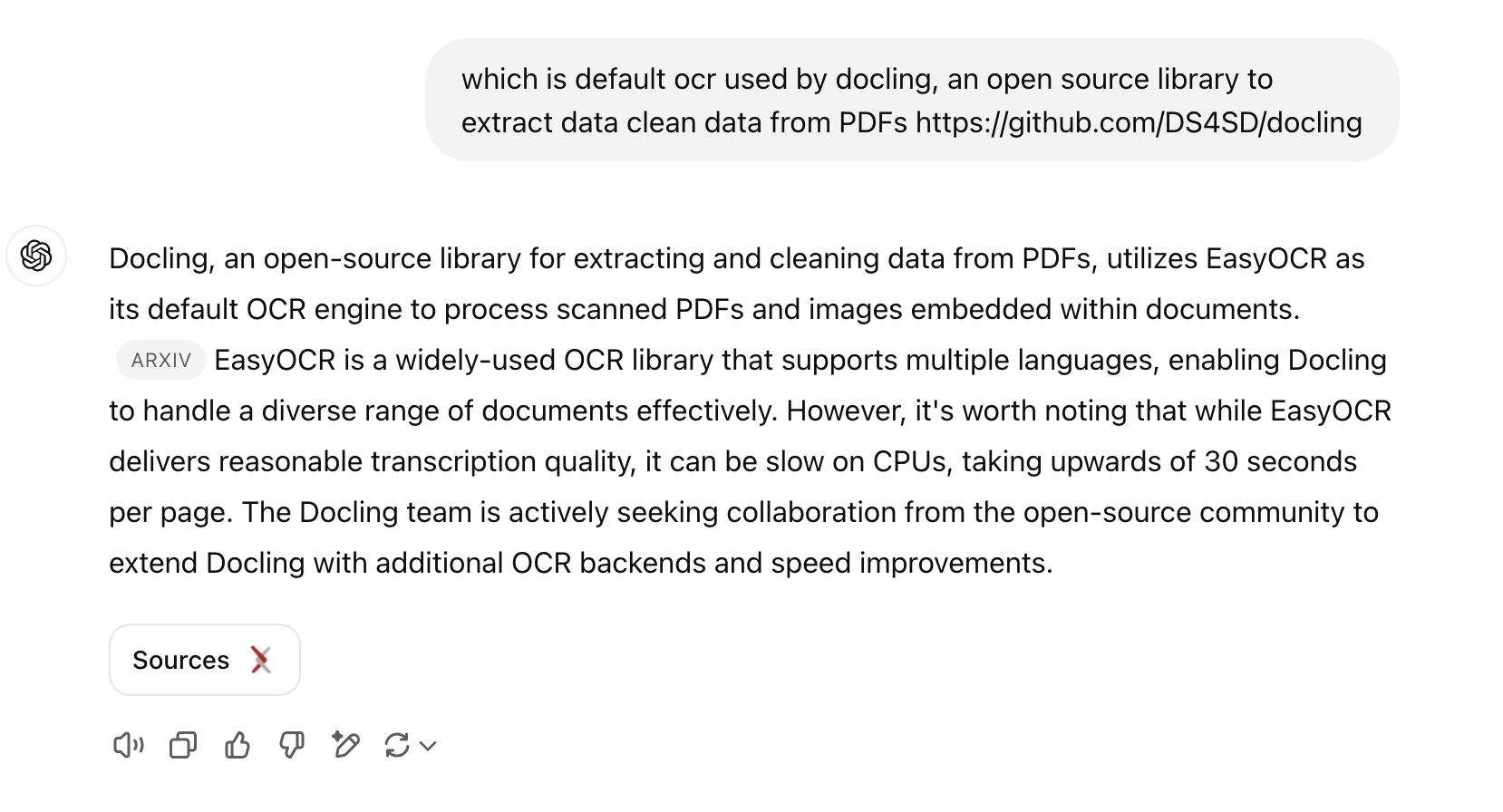
The best part is that it referred to the arXiv paper published by the Docling team to provide the correct answer. I manually verified the paper, and on page 4, it confirms that they use EasyOCR.
OCR
Docling provides optional support for OCR, for example, to cover scanned PDFs or content in bitmap images embedded on a page. In our initial release, we rely on EasyOCR [1], a popular third-party OCR library with support for many languages. Docling, by default, feeds a high-resolution page image (216 dpi) to the OCR engine, to allow capturing small print details in decent quality. While EasyOCR delivers reasonable transcription quality, we observe that it runs fairly slow on CPU (upwards of 30 seconds per page).
We are actively seeking collaboration from the open-source community to extend Docling with additional OCR backends and speed improvements.
From this, it appears that OCR support is optional. This means that when running the code (shown above) with default options, it might not use any OCR. Also, the answer could be wrong if the recent version of Docling have changed the default engine. But, it still is better than others. I decided to verify further.
5. Manual Search
Time to look into the code of Docling myself. When you create an instance of DocumentConverter:
converter = DocumentConverter()
It internally creates an instance of PdfPipelineOptions, which sets the default options:
class PdfPipelineOptions(PipelineOptions):
    """Options for the PDF pipeline."""

    artifacts_path: Optional[Union[Path, str]] = None
    do_table_structure: bool = True  # True: perform table structure extraction
    do_ocr: bool = True  # True: perform OCR, replace programmatic PDF text

    table_structure_options: TableStructureOptions = TableStructureOptions()
    ocr_options: Union[
        EasyOcrOptions,
        TesseractCliOcrOptions,
        TesseractOcrOptions,
        OcrMacOptions,
        RapidOcrOptions,
    ] = Field(EasyOcrOptions(), discriminator="kind")

    images_scale: float = 1.0
    generate_page_images: bool = False
    generate_picture_images: bool = False
    generate_table_images: bool = Field(
        default=False,
        deprecated=(
            "Field `generate_table_images` is deprecated. "
            "To obtain table images, set `PdfPipelineOptions.generate_page_images = True` "
            "before conversion and then use the `TableItem.get_image` function."
        ),
    )
As you can see, do_ocr is set to True by default. So, it is confirmed that Docling uses OCR. But which one?
Docling supports several options: EasyOCR, TesseractCli, TesseractOcr (Python), Ocr (Mac-specific), and RapidOCR.
By default, ocr_options is initialized as Field(EasyOcrOptions(), discriminator="kind"). Therefore, it uses EasyOCR as the default OCR engine.
I double-checked this by debugging the following line. DocumentConverter uses StandardPdfPipeline, which calls get_ocr_model() as shown below. It assigns EasyOcrModel to it:
if (ocr_model := self.get_ocr_model()) is None:
Conclusion
I use LLMs daily—they provide value to me—but I don’t rely on a single LLM solution. I manually ensemble and verify where required.
Discover more from Shekhar Gulati
Subscribe to get the latest posts sent to your email.
