Last night, I found myself overwhelmed by open tabs in Chrome. I wondered how many I had open, but couldn’t find a built-in tab counter. While third-party extensions likely existed, I am not comfortable installing them.
Having built Chrome extensions before (I know, it’s possible in a few hours!), the process usually frustrates me. Figuring out permissions, content scripts vs. service workers, and icon creation (in various sizes) consumes time. Navigating the Chrome extension documentation can be equally daunting.
These “nice-to-have” projects often fall by the wayside due to the time investment. After all, I can live without a tab counter.
LLMs(Large Language Models) help me build such projects. Despite their limitations, they significantly boost my productivity on such tasks. Building a Chrome extension isn’t about resume padding; it’s about scratching an itch. LLMs excel in creating these workflow-enhancing utilities with automation. I use them to write single-purpose bash scripts, python scripts, and Chrome extensions. You can find some of my LLM wrapper tools on GitHub here.
In this post, I’ll demonstrate how I used the free tier of ChatGPT to build a tab counter Chrome extension in just three prompts.
(Unfortunately, I can’t share the ChatGPT conversation due to their policy against sharing chats with images or audio.)
One of the prompts even helped generate the tab counter icon. Below is how Chrome extension looks like.

As you can see above, the extension displays “48 tabs open” in my current window – a mix of HackerNews threads, Arxiv papers, and YouTube videos.
Let’s get started. I always begin each task with a fresh ChatGPT conversation. This helps me keep things organized.
I built an enterprise AI assistant like ChatGPT for my organization and I noticed that users used a single conversation window for all their conversations. Some conversations had over 200 messages! This unexpected behavior forced us to implement limits, dynamic context management, and model switching to stay within the LLM’s context window constraints.
I prefer to start with simple prompts. My initial prompt for building the Chrome extension was as follows:
I want to build a Chrome extension that shows number of open tabs in a chrome window. Write Javascript code for building this Chrome extension.
The above prompt generated three files:
- Manifest File: This is the configuration file for the Chrome extension.
- Background Script: This script will track the number of open tabs.
- Popup: This will display the number of open tabs.
Below is the code of manifest.json
{
  "manifest_version": 3,
  "name": "Tab Counter",
  "version": "1.0",
  "description": "Shows the number of open tabs in a Chrome window.",
  "permissions": ["tabs"],
  "background": {
    "service_worker": "background.js"
  },
  "action": {
    "default_popup": "popup.html",
    "default_icon": {
      "16": "icon16.png",
      "48": "icon48.png",
      "128": "icon128.png"
    }
  },
  "icons": {
    "16": "icon16.png",
    "48": "icon48.png",
    "128": "icon128.png"
  }
}
The code for background.js is shown below.
chrome.tabs.onUpdated.addListener(updateTabCount);
chrome.tabs.onRemoved.addListener(updateTabCount);
chrome.tabs.onCreated.addListener(updateTabCount);

function updateTabCount() {
    chrome.windows.getCurrent({populate: true}, function(window) {
        let tabCount = window.tabs.length;
        chrome.action.setBadgeText({text: tabCount.toString()});
    });
}
The code is self-explainatory. This code monitors the number of open tabs.
Aside from the icon files, ChatGPT generated all the code for me. So, I decided to explore its capabilities further and asked it to create the icon as well.
The next prompt in the conversation was:
Generate the icon files as well
It generated the below icon. ChatGPT also responded that we should resize image for the different sizes.
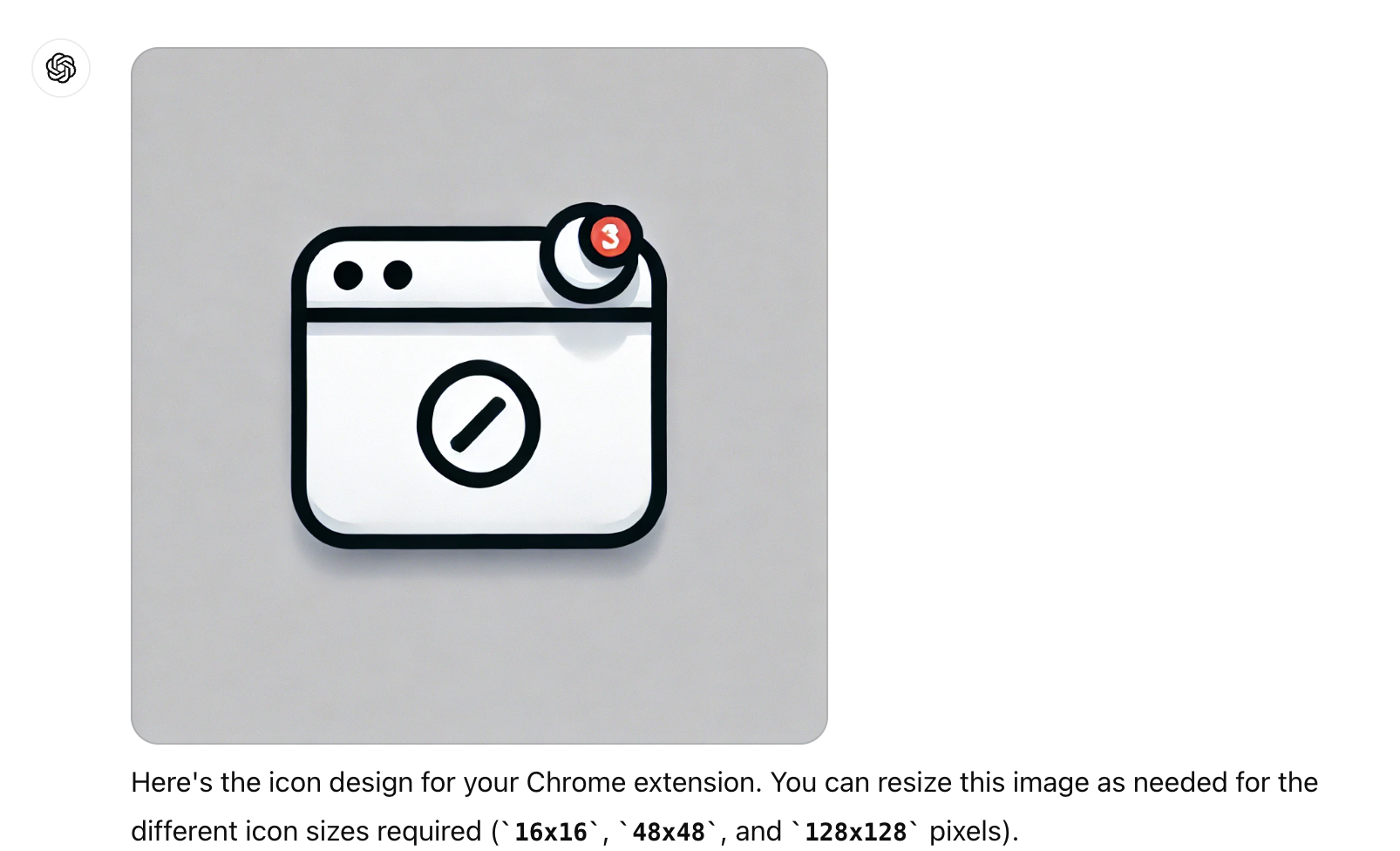
Aware of ChatGPT’s ability to generate and execute code through its Code Interpreter, I prompted it to resize images for me.
Resize the images in 16x16, 48x48, and 128x128 pixel sizes
ChatGPT generated a Python script that resized the icon in various sizes and offered the option to download the results. Here’s the Python code used for image resizing:
from PIL import Image

# Load the original image
original_image_path = '/mnt/data/A_simple_and_clean_icon_design_for_a_Chrome_extens.png'
original_image = Image.open(original_image_path)

# Define the sizes
sizes = [16, 48, 128]
resized_images = {}

# Resize the images
for size in sizes:
    resized_image = original_image.resize((size, size), Image.ANTIALIAS)
    resized_image_path = f'/mnt/data/icon_{size}x{size}.png'
    resized_image.save(resized_image_path)
    resized_images[size] = resized_image_path

resized_images
At this point, all I had to do was download the files to my local machine and upload the Chrome extension to chrome://extensions/.
In the initial prompt, ChatGPT provided a comprehensive guide on the necessary steps.
- Create a new directory for your extension (e.g.,
tab-counter). - Add the
manifest.json,background.js,popup.html,popup.js, and the icon files to this directory. - Open Chrome and navigate to
chrome://extensions/. - Enable “Developer mode” in the top right corner.
- Click on “Load unpacked” and select the directory you created.
One last prompt I tried in this conversation was to create a zip that has all the files so I can just download it and then use it. For me it didn’t work.
Create a zip file with all the code files and images. Rename images to icon16.png, icon48.png, icon128.png
It tried to do it four times but failed to do so.

To pin extension to toolbar, go to the tab-counter extension details check Pin to toolbar toggle button.
Discover more from Shekhar Gulati
Subscribe to get the latest posts sent to your email.
